

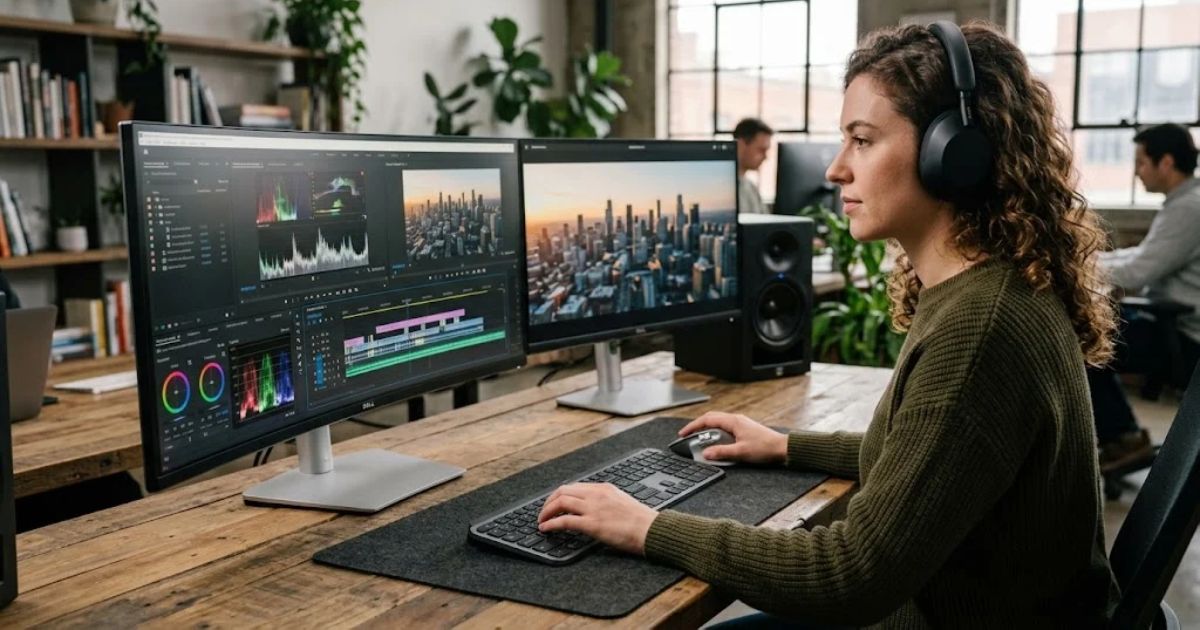
Video editing used to mean long nights, timeline chaos, and a steep learning curve. That’s changed. AI video editing tools now handle the repetitive, technical work: cutting dead air, syncing captions, matching color, even generating B-roll from a text prompt.
I’ve spent the last several years editing content for YouTube channels, course creators, and marketing teams, and the shift in the last two years has been obvious. Tasks that used to take an hour of manual scrubbing now take minutes.
This guide covers the AI video editing tools worth your time in 2026, how they actually perform in real projects, who each one is built for, and the mistakes I see creators make when choosing one. No fluff, no recycled “top 10” lists copied from other blogs.
By the end, you’ll know exactly which tool fits your workflow, whether you’re cutting podcasts into clips, producing faceless YouTube videos, or managing a full brand content pipeline.
What Is an AI Video Editing Tool?
An AI video editing tool uses machine learning models to automate parts of the editing process that traditionally required manual input. That includes:
- Removing filler words and silences automatically
- Generating subtitles with accurate speaker detection
- Reframing horizontal video into vertical formats for Reels, Shorts, and TikTok
- Finding the best moments in long-form footage to turn into clips
- Generating voiceovers, avatars, or B-roll from text
- Color matching and audio leveling without manual correction
Some tools, like Descript, work like a word processor for video. Others, like Runway, lean into generative AI, creating footage rather than just editing it. The “best” tool depends entirely on what you’re producing and how hands-on you want to be.
Who Actually Needs AI Video Editing Software?
Not everyone needs the same tool. Here’s how I’d break it down based on real workflows:
- Content creators and YouTubers — need fast turnaround, repurposing tools, and auto-captioning
- Podcasters — need transcript-based editing and clip generation for social
- Marketing teams — need brand templates, bulk editing, and collaboration features
- Course creators and educators — need screen recording cleanup, filler word removal, and simple exports
- Agencies — need scalability, team seats, and consistent output quality
- Solo entrepreneurs doing faceless content — need text-to-video and stock footage automation
If you’re editing one video a month, a full AI suite is overkill. If you’re producing daily short-form content, manual editing is the real time waster.
Best AI Video Editing Tools in 2026
Below is a practical breakdown based on actual usage, not marketing pages. I tested workflow speed, output quality, learning curve, and pricing fairness.
1. Descript — Best for Transcript-Based Editing
Descript turns your video into an editable text document. Delete a sentence from the transcript, and it cuts the matching clip from the timeline. For talking-head videos, podcasts, and interviews, this is still the fastest editing method available.
Standout features:
- Studio Sound for cleaning up noisy audio
- Overdub for voice cloning and corrections
- Filler word removal (“um,” “uh,” repeated words)
- Multitrack editing for podcasts with multiple speakers
- Built-in screen recording
Best for: Podcasters, course creators, YouTubers who talk to camera
Limitation: Not built for heavy motion graphics or complex multi-layer visual effects. You’ll outgrow it if you need cinematic editing.
2. CapCut — Best Free Option for Short-Form Content
CapCut remains the fastest way to produce TikToks, Reels, and Shorts. The desktop and mobile versions are nearly identical in function, which matters if you edit on the go.
Standout features:
- Auto-captions with strong accuracy across languages
- Templates that match trending formats
- Auto-reframe for vertical video
- Background removal without a green screen
- Text-to-speech voices
Best for: Short-form creators, social media managers, beginners
Limitation: The free version is genuinely generous, but some premium effects and export options sit behind a paywall now. Watermark-free exports require a subscription in some regions.
3. Adobe Premiere Pro (with Firefly AI features) — Best for Professional-Grade Control
Premiere Pro isn’t a pure “AI tool,” but Adobe has built serious AI capability into it: generative extend, automatic scene detection, AI-powered color matching, and text-based editing similar to Descript.
Standout features:
- Generative Extend to fill gaps in footage without reshooting
- Enhance Speech for cleaning dialogue audio
- Auto-reframe for multiple aspect ratios in one export
- Full integration with After Effects and Photoshop
Best for: Professional editors, agencies, anyone needing frame-accurate control
Limitation: Steep learning curve compared to app-based editors. Subscription cost adds up if you only need basic editing.
4. Runway — Best for Generative Video and Creative Effects
Runway sits in its own category. It’s less about trimming footage and more about generating or transforming it. Text-to-video, video-to-video style transfer, and object removal are genuinely useful for creative projects, ads, and experimental content.
Standout features:
- Text-to-video generation
- Green screen removal without an actual green screen
- Motion brush for animating specific parts of an image
- Inpainting to remove unwanted objects from footage
Best for: Creative agencies, filmmakers, marketers producing concept visuals
Limitation: Generated footage still has visible AI artifacts in complex scenes with fine detail or fast motion. Not a replacement for shot footage yet.
5. Opus Clip — Best for Turning Long Videos into Social Clips
If you publish long podcasts or webinars and want short clips out of them automatically, Opus Clip is built specifically for that job.
Standout features:
- AI scoring system that ranks the most “clippable” moments
- Automatic captions styled for social platforms
- Speaker tracking and reframing
- Virality score prediction based on pacing and hooks
Best for: Podcasters, webinar hosts, YouTubers repurposing long content
Limitation: The AI’s “best moment” picks are a helpful starting point, not a final decision. Always review suggestions manually.
6. Pictory — Best for Turning Text or Blog Content into Video
Pictory converts scripts, blog posts, or articles into video content using stock footage, AI voices, and auto-generated captions. Useful for content teams repurposing written content at scale.
Standout features:
- Blog-to-video conversion
- Auto-highlight long videos into short summaries
- Text-based editing similar to Descript
- Branded templates for consistency
Best for: Content marketers, bloggers repurposing articles into video
Limitation: Stock footage matching can feel generic if you don’t customize scenes manually.
7. HeyGen — Best for AI Avatars and Localization
HeyGen generates realistic AI avatars that can deliver scripted content in multiple languages with lip-sync accuracy. It’s become a serious tool for training videos, product explainers, and localized marketing.
Standout features:
- AI avatars with natural lip-sync
- Script-to-video in 40+ languages
- Voice cloning for consistent brand voice
- Fast turnaround for corporate and training content
Best for: Corporate training teams, SaaS companies, global marketing teams
Limitation: Avatars still read as synthetic in close-up shots. Works best for explainer-style content, not emotionally driven storytelling.
8. DaVinci Resolve — Best Free Tool for Color and Audio Precision
Resolve has added AI-assisted tools like Magic Mask, speed warp, and voice isolation, while keeping its reputation as the most powerful free color grading tool available.
Standout features:
- Magic Mask for object tracking and isolation
- AI-powered voice isolation
- Professional color grading tools
- Full editing, audio, and VFX suite in one app
Best for: Editors who want professional color and audio control without a subscription
Limitation: Interface is dense. Beginners will need time to get comfortable before AI features feel intuitive.
9. Veed.io — Best All-in-One Browser-Based Editor
Veed works entirely in the browser, which makes it a solid middle ground between CapCut’s simplicity and Premiere’s complexity.
Standout features:
- Auto-subtitles with translation into multiple languages
- AI avatars and text-to-speech
- Noise removal and audio cleanup
- Brand kit for consistent templates across a team
Best for: Small teams and solo creators who want browser-based simplicity
Limitation: Exporting long, high-resolution videos can be slower than desktop software.
10. Google Vids — Best for Teams Already Using Google Workspace
Google Vids integrates directly with Docs, Slides, and Drive, which makes it a practical pick for internal company videos, training content, and quick team updates.
Standout features:
- AI script generation based on prompts or existing docs
- Automatic voiceover generation
- Direct integration with Google Workspace
- Simple collaborative editing
Best for: Internal communications, HR teams, companies already on Google Workspace
Limitation: Not built for external, polished marketing content. Template variety is limited compared to dedicated editors.
Comparison Table: AI Video Editing Tools 2026
| Tool | Best For | Standout AI Feature | Pricing Model | Learning Curve |
|---|---|---|---|---|
| Descript | Talking-head & podcast editing | Transcript-based editing | Free tier + paid plans | Low |
| CapCut | Short-form social content | Auto-reframe & captions | Free + premium add-ons | Low |
| Premiere Pro | Professional editing | Generative Extend | Subscription | High |
| Runway | Generative video/effects | Text-to-video | Credit-based + subscription | Medium |
| Opus Clip | Long-to-short repurposing | Virality scoring | Free tier + paid plans | Low |
| Pictory | Text/blog-to-video | Blog-to-video conversion | Subscription | Low |
| HeyGen | AI avatars & localization | Multilingual lip-sync | Subscription | Low |
| DaVinci Resolve | Color grading & audio | Magic Mask | Free + paid Studio version | Medium-High |
| Veed.io | Browser-based all-in-one | Auto-translation | Free tier + subscription | Low |
| Google Vids | Internal/company video | AI script generation | Included in Workspace plans | Low |
How to Choose the Right AI Video Editing Tool
Don’t pick based on hype. Match the tool to your actual output.
Step 1: Define your primary content format.
Short-form vertical video needs different tools than long-form YouTube or corporate training.
Step 2: Identify your biggest time drain.
If captions take forever, prioritize auto-caption accuracy. If repurposing is the bottleneck, prioritize clip-generation tools like Opus Clip.
Step 3: Test the free tier before committing.
Almost every tool on this list has a usable free plan. Run one real project through it before paying.
Step 4: Check export limits and watermarks.
Some “free” plans restrict resolution or add watermarks. Confirm this matches your publishing needs.
Step 5: Consider your team size.
Solo creators can get away with app-based tools. Teams need collaboration features and shared brand kits.
Common Mistakes Creators Make With AI Video Editing Tools
Trusting AI clip selection blindly. Tools like Opus Clip are good starting points, not final judgment. Always watch the suggested clips before publishing.
Over-relying on AI voices for emotional content. Synthetic voices work for tutorials and explainers. They still sound flat in storytelling or testimonial-style content.
Ignoring audio quality. Many creators obsess over visual AI features and skip audio cleanup tools like Studio Sound or Resolve’s voice isolation. Bad audio kills retention faster than average visuals.
Using generative video for final footage. Tools like Runway are excellent for concept work, transitions, and effects. They’re not yet reliable for final, broadcast-ready footage in every scene type.
Choosing a tool based on features you’ll never use. A tool with 50 features you won’t touch isn’t “better.” Pick based on the 3-4 features you’ll use every single project.
Expert Tips for Getting the Most Out of AI Video Editing
- Run your raw footage through noise cleanup before any other AI processing. Clean audio improves transcript accuracy for caption and editing tools.
- Combine tools instead of expecting one app to do everything. Many professional workflows use Descript for the rough cut, then Premiere or Resolve for final color and polish.
- Always proofread AI-generated captions. Accuracy is high but not perfect, especially with industry jargon, names, or accents.
- Keep a swipe file of hooks and pacing patterns from Opus Clip or similar tools, even when you don’t use their exact clip suggestions.
- Export a test clip in your final format before processing a full project. This catches resolution, aspect ratio, or watermark issues early.
Where AI Video Editing Is Heading
A few trends are shaping where these tools go next:
- Better generative consistency. Text-to-video tools are improving at maintaining consistent characters and scenes across multiple shots, which has been a major limitation.
- Real-time editing assistance. Expect more tools to suggest edits live during recording, not just after the fact.
- Deeper platform-specific optimization. Tools are getting better at tailoring pacing and format for individual platforms like TikTok versus YouTube versus LinkedIn, rather than one-size-fits-all exports.
- Tighter integration between generative and traditional editing. The line between “AI video generator” and “video editor” is blurring, with traditional editors like Premiere adding generative features directly into the timeline.
None of this replaces editorial judgment. AI speeds up execution. It doesn’t decide what story is worth telling.
FAQ
What is the best free AI video editing tool in 2026?
CapCut remains the strongest free option for short-form content, while DaVinci Resolve is the best free choice for full editing control, color grading, and audio work.
Can AI video editors replace a professional video editor?
For simple, template-based content, yes. For branded storytelling, complex pacing, or high-end visual work, AI tools speed up the process but still need human judgment for final decisions.
Which AI tool is best for turning podcasts into short clips?
Opus Clip is built specifically for this. Descript also works well if you want more manual control over clip selection.
Is Runway good for making full videos from scratch?
Runway is strong for generating short clips, effects, and creative transitions. It’s not yet reliable for producing full, polished videos without manual editing afterward.
Do AI captions actually work well, or do I still need to fix them?
Accuracy has improved significantly, but you should still proofread captions, especially for names, technical terms, and non-native accents.
What’s the difference between Descript and CapCut?
Descript edits based on a text transcript and is better for talking-head and podcast content. CapCut is built for fast, template-driven short-form social content.
Are AI avatars from tools like HeyGen good enough for marketing videos?
They work well for explainer content, training videos, and localized marketing where tone stays informative. They’re less convincing for emotionally driven brand storytelling.
How much do AI video editing tools typically cost?
Most offer a free tier with limited exports or watermarks. Paid plans generally range from affordable monthly subscriptions for individuals to higher-tier plans for teams with more seats and features.
Conclusion
There’s no single “best” AI video editing tool in 2026. The best choice depends on what you’re making and how you work.
If you talk to camera and want fast, text-based editing, Descript is hard to beat. If you’re producing daily short-form content, CapCut gets you there fastest for free. If you need professional-grade control, Premiere Pro with its generative AI features still leads. And if your work leans creative or experimental, Runway opens doors that didn’t exist in traditional editing software a few years ago.
Leave a Reply